

Kliper runs in the browser on a phone with the same account, the same data and the same autosave as on a laptop. Since 12 October 2026 the assessment workspace and the pages around it are laid out for a phone screen: controls stay on screen instead of running off the edge, rows of tabs scroll in their own strip instead of pushing the page sideways, and the assessment editors have layouts drawn for a narrow screen. A laptop keeps its own layouts.
The assessment shell
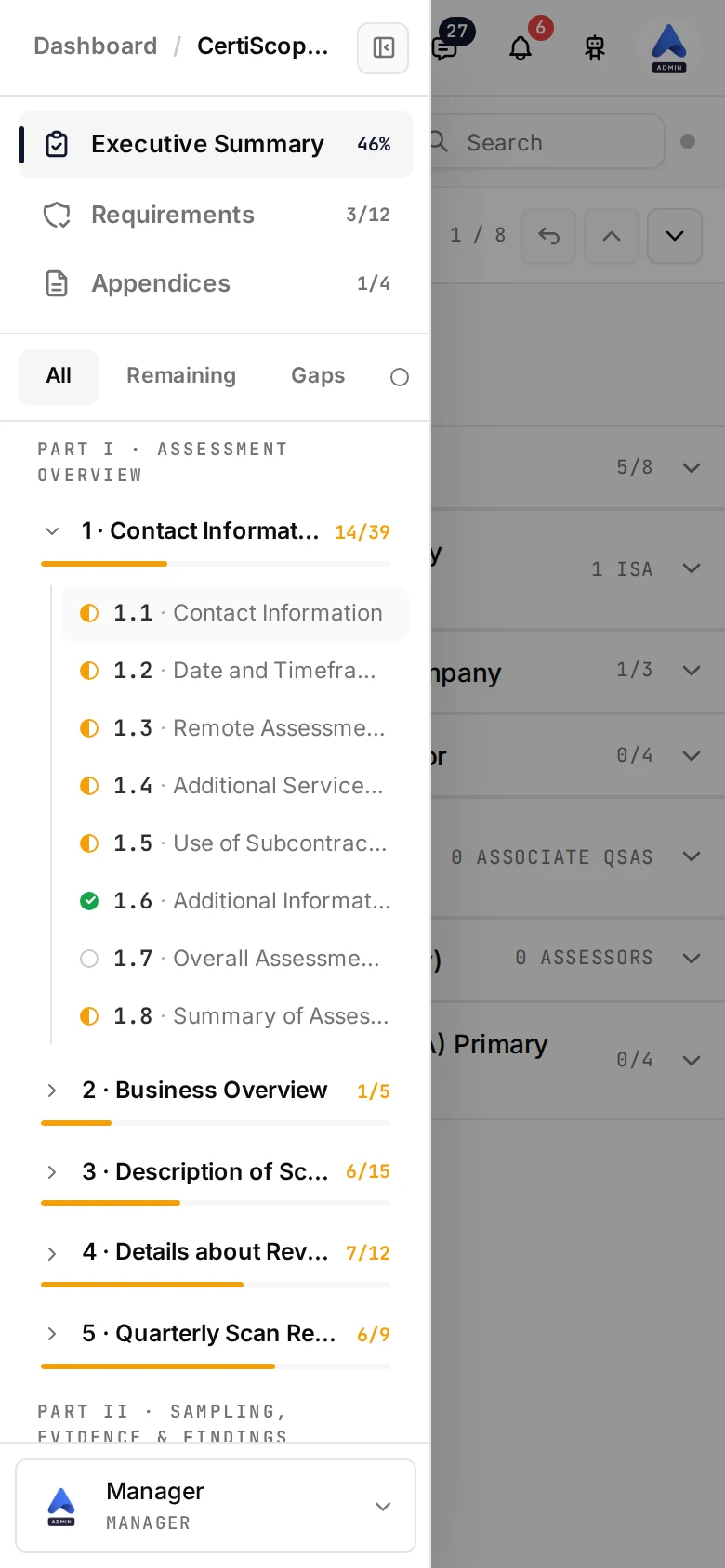
Open an assessment on a phone and the page scrolls as a page, so Safari can tuck its toolbar away as you scroll; the top bar stays pinned. The two side panels of the laptop become drawers opened from the top bar.
| Button | Where | What opens |
|---|---|---|
| Menu (three lines, at the left) | Every assessment page | The navigation drawer: the assessment’s pages; in the section editor, the section tree, which on a PCI DSS assessment has the Executive Summary, Requirements and Appendices groups and the All / Remaining / Gaps filter |
| Panel (speech bubble, at the right) | The section editor | The right rail, full screen: Messages, Evidence and People. The badge on the button counts the messages. Close it with X |
| Cortex (robot, at the right) | Every page | Cortex, full screen |
| Actions (three dots) | Every assessment page except the section editor | Invite, Export (PCI DSS) and Share (coming soon). In the editor these move into the gear menu, see The editor’s menus |
One panel is open at a time. Tap outside the navigation drawer to close it; in the section editor, picking a section or subsection closes it as well. In the drawer, tapping the title of one of sections 1 to 6 lands on that section’s list of subsections; tapping a subsection opens it directly.
Tab rails
A row of tabs that does not fit the screen scrolls inside its strip. An arrow appears on whichever side still has tabs; tap it to move the rail by almost its full width. The open tab is always scrolled fully into view, so you never land on a tab you cannot see. With a keyboard attached, the arrow keys, Home and End move between the tabs.
You meet these rails in the assessment overview tabs (Backlog, Overview, Requirements, Milestones, Activity, Interviews), the client and LOE pages, Settings, Reports, the portal’s request page, the New and Edit LOE step bars, the BAU filters, the backlog phase strip, the Cortex panel’s history filters and prompt chips, the scoping assistant’s chips, the status badges on the assessments list, the Files page strips, the ISO Statement of Applicability and findings filters, the admin analytics rail, and the tabs inside the phone editors described below.
The evidence tab
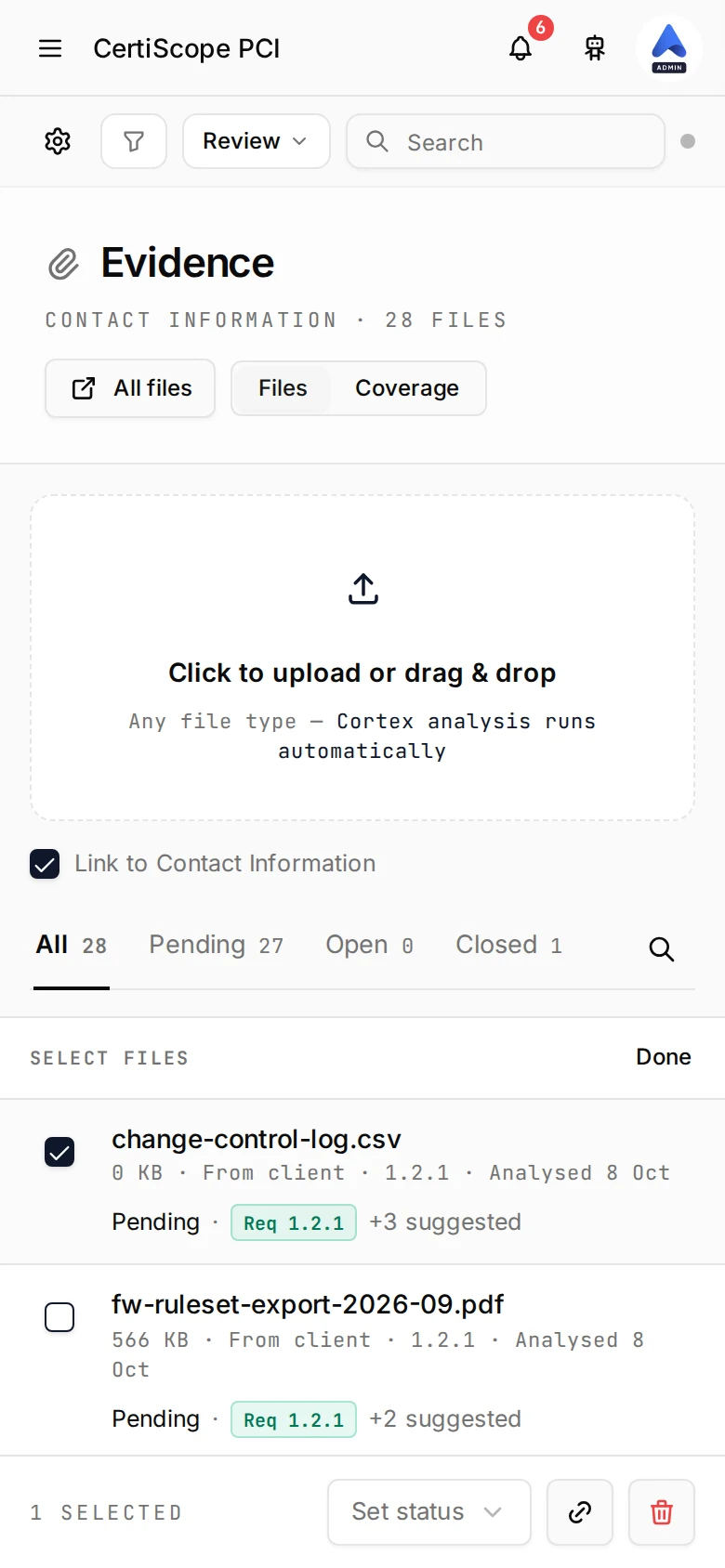
The evidence tab of an assessment keeps its header and its upload drop zone; the table below them becomes a list.
- A status rail (All, Pending, Open, Closed, each with its count) with the search behind a magnifier icon.
- A caption with the file count and a Select button.
- One row per file: the type tile, the name on up to two lines, a scan chip only when the scan is not clean, then size · source · analysed, then the validation status, the requirement chips the file is linked to, and a note on Cortex’s suggestions.
Tap a row to open the file panel, which fills the screen. Its bar holds a pager (3 / 9 with previous and next), Preview, Download and Close; below it come the file’s facts, its status, the scan result, the requirements it is linked to with Cortex’s suggestions (each one on a single column: the requirement, the reason, the confidence, then Link or dismiss), the tags, what Cortex read, and the validation against the requirement’s criteria where it applies.
Select mode
Tap Select
The file tiles become checkboxes and a bar appears at the bottom of the screen.
Tap the files
Each tap checks or unchecks a row; the bar counts the selection.
Act on the selection
Set status applies one validation status to every checked file, the link button links them to a section, and the bin deletes them after a single confirmation.
Tap Done
Leaves Select mode.
If the current section has no evidence but the assessment has files elsewhere, the empty state offers Show all files to list them all.
A PCI requirement
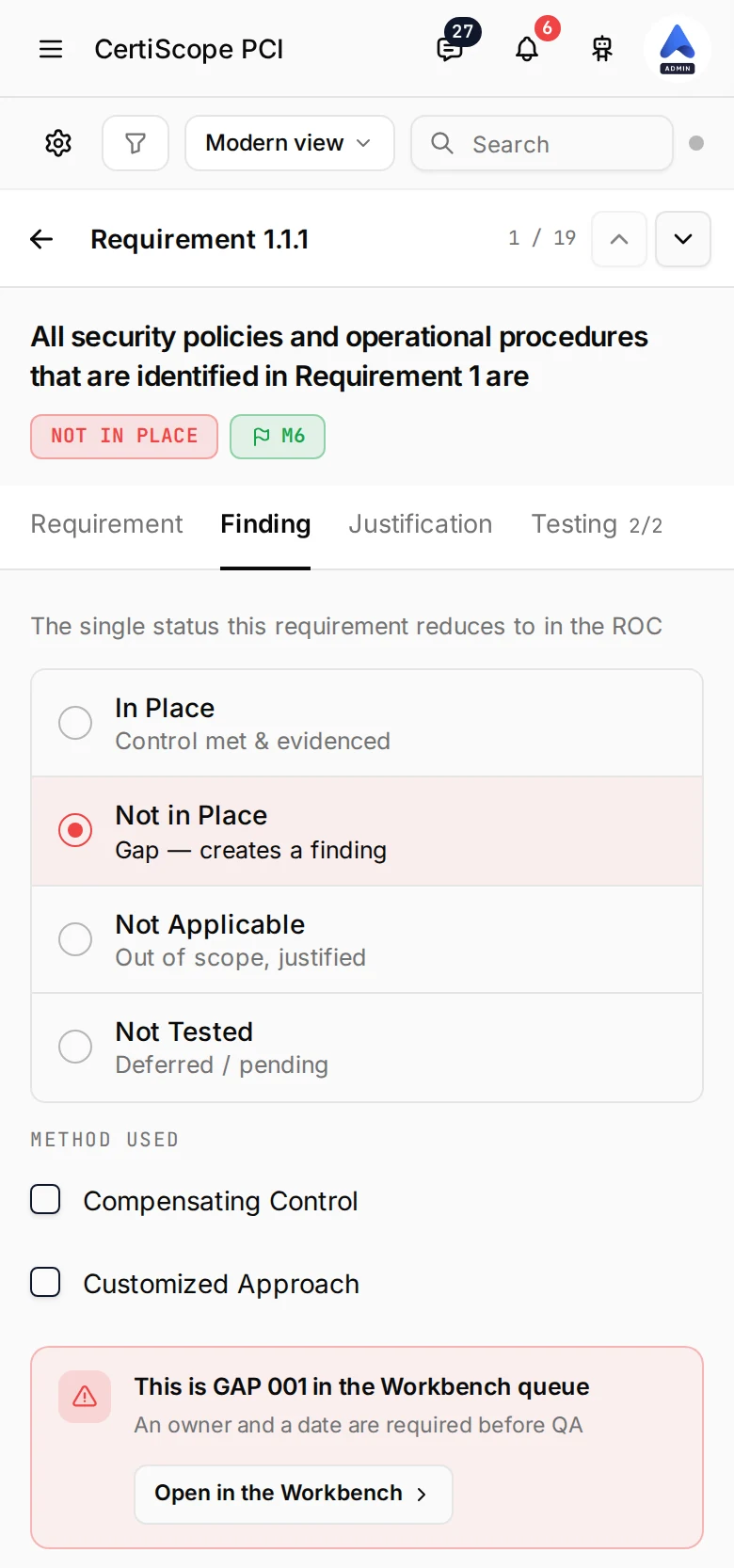
In the Modern view, a requirement of section 7 opens on two screens.
The list screen. The header names the requirement, with Previous and Next arrows that step to the neighbouring requirement (the section’s goal headings are skipped), the count of controls decided, Undo and Save. Each sub-requirement folds its controls. A control row shows its number, its title, its finding chip, then its milestone, its test procedures and how many reporting instructions have a response, and its review state when it has one.
The control screen. Tap a control to open it. The bar holds a back arrow, the control’s number, its position (3 / 12) and up and down arrows to the neighbouring controls; under it, the control’s title with its finding, milestone and review chips, then four tabs:
| Tab | What it holds |
|---|---|
| Requirement | The PCI DSS text and its bullets, with the guidance panel folded under them |
| Finding | The four findings as a list (In Place, Not in Place, Not Applicable, Not Tested), Method used (Compensating Control, Customized Approach), the gap banner with its Open in the Workbench button under the text when the finding is a gap, and the same review submission as on the laptop |
| Justification | The justification text, with Cortex’s offer to draft it from the cited evidence and Note an improvement for an optional INFI note |
| Testing | Each test procedure with its response count, its text, How to test, and every reporting instruction with its response and evidence |
Everything writes to the same fields as the laptop: autosave, the N/A cascade into the testing procedures and the QA review loop are unchanged.
The executive summary (sections 1 to 6)
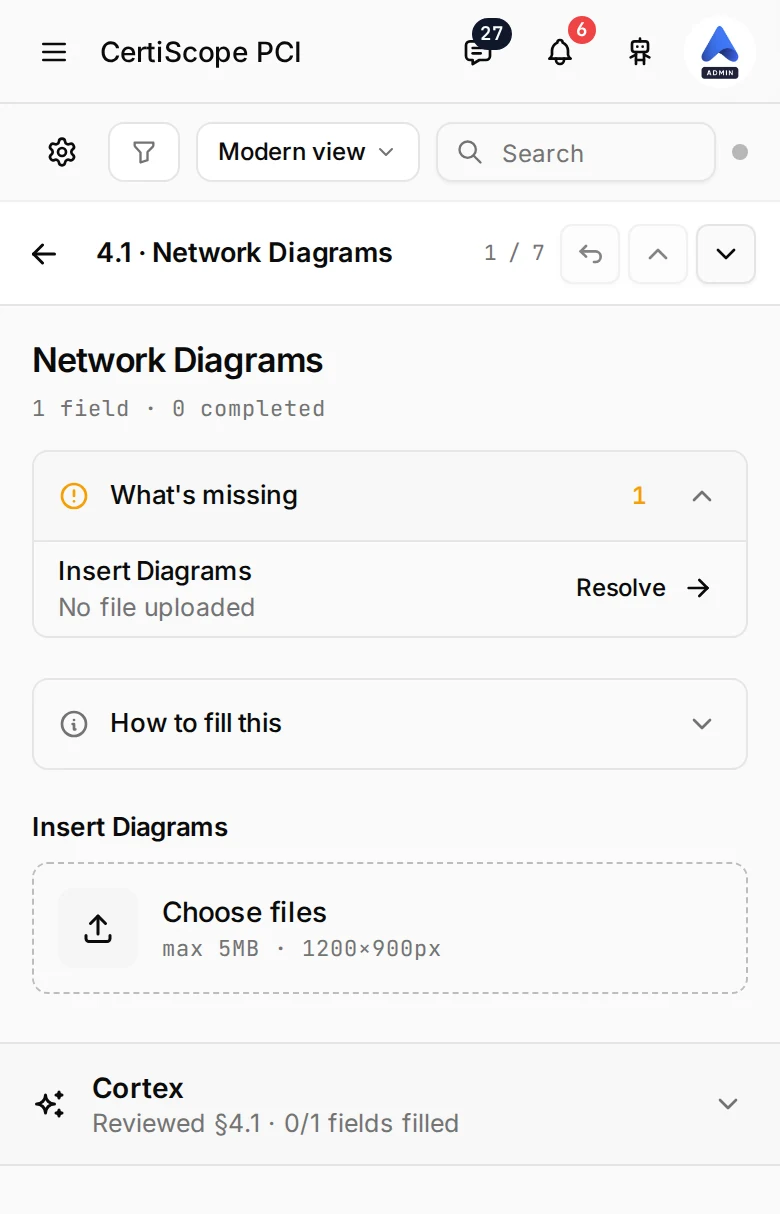
Sections 1 to 6 of the ROC open on three screens.
The section list. The section header keeps its count of completed fields, the Previous and Next section arrows and Save. Under it, one row per subsection shows its field count, how many are completed, and a Complete chip once every required field is filled.
A subsection. Tap a row to open it. The bar holds a back arrow to the list, the subsection’s number and name, its position in the section, Undo, and up and down arrows to the neighbouring subsections. Under the title:
- What’s missing (sections 4 to 6, while anything is missing): the count of empty required fields, rows and tables, each with Resolve, which jumps to the field, opens the row or starts the table’s first row.
- The fields, one under the other, with the label above the control: text, number and date fields, a growing text area, radio options as a list, checkbox lists, and an Optional caption on the few fields that can stay empty. Fields carry the letters the laptop gives them, filled in once they have an answer.
- In sections 2 to 6, the questions fold behind their lead: tap one for its bullets, its note and the answer. A subsection made of several parts (the parties of 1.1, the products of 3.3, the scans and the attestation of 5.1 and 5.3, among others) folds each part with its count.
- An If Yes or If No field appears once its question has that answer and reads N/A when it has the other; the N/A counts as answered.
- On 4.1 and 4.2, the instructions fold into How to fill this, diagrams upload from a Choose files row with a row and a caption per file, and a Cortex block closes the page with the diagram scope check: once a diagram is uploaded, Read the diagram lists the components Cortex finds, to tick and Add selected to 4.7, or Open 4.7.
A table row. A table is a stack of rows, each titled by its first filled column (after the reference, where the table has one), with the reference or the next detail beneath. Tap Add for a new row, or a row to edit it. The row editor fills the screen: one field per column, Yes / No pairs as a radio list, a date picker for dates, the row’s position with up and down arrows, Undo, and Delete at the bottom. A deleted row comes back from the Undo in the toast for eight seconds.
- 6.4 Documentation Evidence groups its documents under their reference, with the catalogue’s description and a count; tap a reference to see its documents. Sync from Files lists every tagged file on its own row, and the Reference Number field offers the tag catalogue and the assessment’s own references as you type.
- 6.5 leads each row with the interviewee’s initials; in 6.6, the sample set field offers the references of 6.3 as chips.
- 1.8 is a pivot: one result or method at a time in a tab rail (In Place first), the fifteen requirement rows as checkboxes, and the six sub-requirement groups folded, each with Cortex’s suggestions drawn from the section 7 findings and an Add sub-requirement field.
Undo, in the subsection bar, the row editor and the requirement list header, walks the section’s changes back one step at a time, up to fifty, until you leave the section; a quick run of edits to one field counts as a single step.
The editor’s menus
On a phone the editor’s toolbar holds the gear, the milestone filter (PCI DSS), a view dropdown and the search, on one row.
- The gear menu holds Setup & Scoping, Add Comment, Attach File, Invite, Share (coming soon), Analysis (Gap Analysis, Risk Dashboard, Recommendations) and Export. Invite and Share live here on a phone, so the top bar’s three-dots menu is not shown on the editor. Setup & Scoping, Analysis and Export are PCI tools; an ISO or SWIFT assessment shows the rest.
- The view dropdown switches between Modern view, Draft, Gap Analysis, Risk Dashboard and Audit Trail; an ISO or SWIFT assessment has Modern view and Audit Trail. The PDF view is a laptop view and is not offered on a phone.
Other screens
| Screen | On a phone |
|---|---|
| Client page | Each Letter of Engagement is a stacked row: number and status, the whole title, then dates, value and assessment count. The evidence requests header lays its buttons out two by two |
| Client BAU tab | The stats are one strip of cells over two rows, the unowned banner stacks its Review unowned button at full width, the filter tabs scroll, and the view switch and Add activity take a row each |
| Readiness interview | The maturity summary sits in the page flow above the question instead of staying pinned over it, the question comes before the domain list, each scoring tile keeps its name on one line, and Record signal is the wide action of its row |
| ROC cover and instructions | The flow strip shows whole labels, the bottom actions stack, and the PCI DSS Document Changes table reads as cards |
| Gap analysis | One page flow: the requirement list in full, the detail under it, and picking a requirement scrolls the detail into view |
| Risk scoring | The fifth stat card spans the rest of its row |
| Audit trail and Exported ROCs | An event puts the name and the time on one line and the sentence under them; a version row keeps its name whole with its actions on their own row |
| SWIFT CSCF | The control’s action strip is one row with Save at the right, the four facts stack in one column, the attestation’s All controls table stacks each control with its grade, and a long open item folds its note to four lines with Show more |
| ISO 27001 | The report header puts Download audit report under the text, the Statement of Applicability and findings filters get the rail arrows, and a decision row or a finding header lines its buttons up |
| Engagement Hub | The Table and Pipeline buttons carry a Soon mark and say coming soon when tapped |
iOS: no zoom on focus
On an iPhone, Safari no longer zooms into a field of an assessment when it gets focus: the editors keep their text size, and pinch-zoom still works. Android is unchanged.