

Kliper runs an ISO/IEC 27001:2022 internal audit from start to finish. You grade the 30 requirements of clauses 4 to 10 and the 93 Annex A controls. The client decides which controls apply and answers your findings in the client portal. When you are done, Kliper fills the internal audit report as a Word document.
How an audit runs
Create the assessment
Pick the ISO 27001 framework when you create the assessment. Kliper pre-fills the report details from the client and the engagement letter.
Send the Statement of Applicability
The client decides which Annex A controls apply in the portal. You accept each exclusion or challenge it.
Request evidence
Send the evidence packs. Controls the client excluded are left out automatically.
Grade each clause and control
Record the outcome for every item, and write the finding the client will read for anything that is not compliant.
Send the findings
The client answers each finding in the portal: the cause, the action, who owns it and by when.
Export the report
Download the internal audit report, with the results, the findings and the client’s responses filled in.
Create an ISO assessment
Click New assessment in the top bar, then choose the framework:
- Quick create: in Framework, select ISO/IEC 27001 2022.
- Full wizard: on the Framework step, select ISO/IEC 27001 and version 2022. The scoping questionnaire and report profiles belong to PCI DSS, so the wizard skips them for ISO.
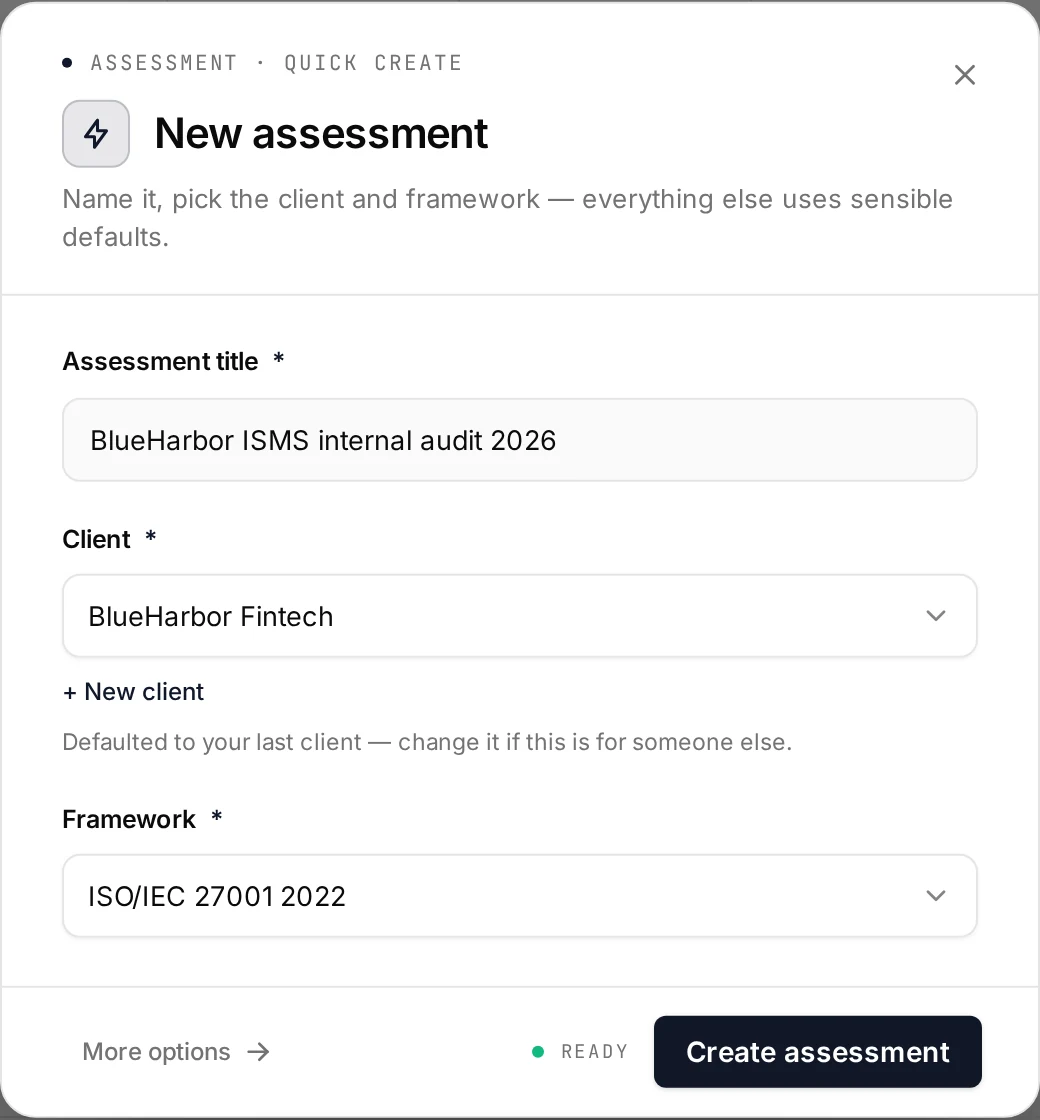
See Creating an Assessment for the rest of the flow.
When the assessment is created, Kliper pre-fills the audit report part: the report date, the standard introduction, objective, scope and methodology wording, the client’s company details and contacts, the audit dates from the engagement letter, and you as the auditor. Every pre-filled value stays editable.
Start from last year’s audit
Internal audits repeat every year. In the full wizard, on the History step, choose Not first time and pick last year’s audit under Carry answers forward from. Choosing it also sets the framework. Kliper then copies, as a starting point:
- The client’s Statement of Applicability: their decisions, reasons, implementation notes and covering documents, but not your acceptances or challenges.
- Your auditor notes, evidence references, finding text and recommendation on each clause and control.
- The report details that describe the client and the method: company background, location, auditor title and certificate number, the objective, scope determination and methodology text, the people interviewed and the documents reviewed.
Grades, maturity ratings and testing-procedure ticks are not carried. Every clause and control is graded afresh, and its screen shows last year’s grade as a hint until you pick this year’s. The report date, audit dates, auditor and conclusion belong to the new audit. A banner at the top of the assessment says what was carried.
What the assessment contains
| Part | Items | What you do |
|---|---|---|
| ISMS requirements (clauses 4 to 10) | 30 requirements | Grade each one. Clauses are mandatory and cannot be excluded. |
| Annex A controls | 93 controls in four themes: organizational (37), people (8), physical (14), technological (34) | Grade each one, unless the client’s Statement of Applicability excludes it. |
| Executive summary | 5 report screens, R.1 to R.5 | Fill them like a form. They feed the audit report. |
Inside the assessment, the sidebar gives you Clauses and controls, Statement of Applicability, Findings, Evidence, Interviews and Backlog. On the clauses and controls screen, switch between Executive summary, Clauses 4 to 10 and Annex A controls, and filter the list by All, Remaining or Findings. Each row carries a dot in the colour of its grade; an excluded control shows a dashed ring.
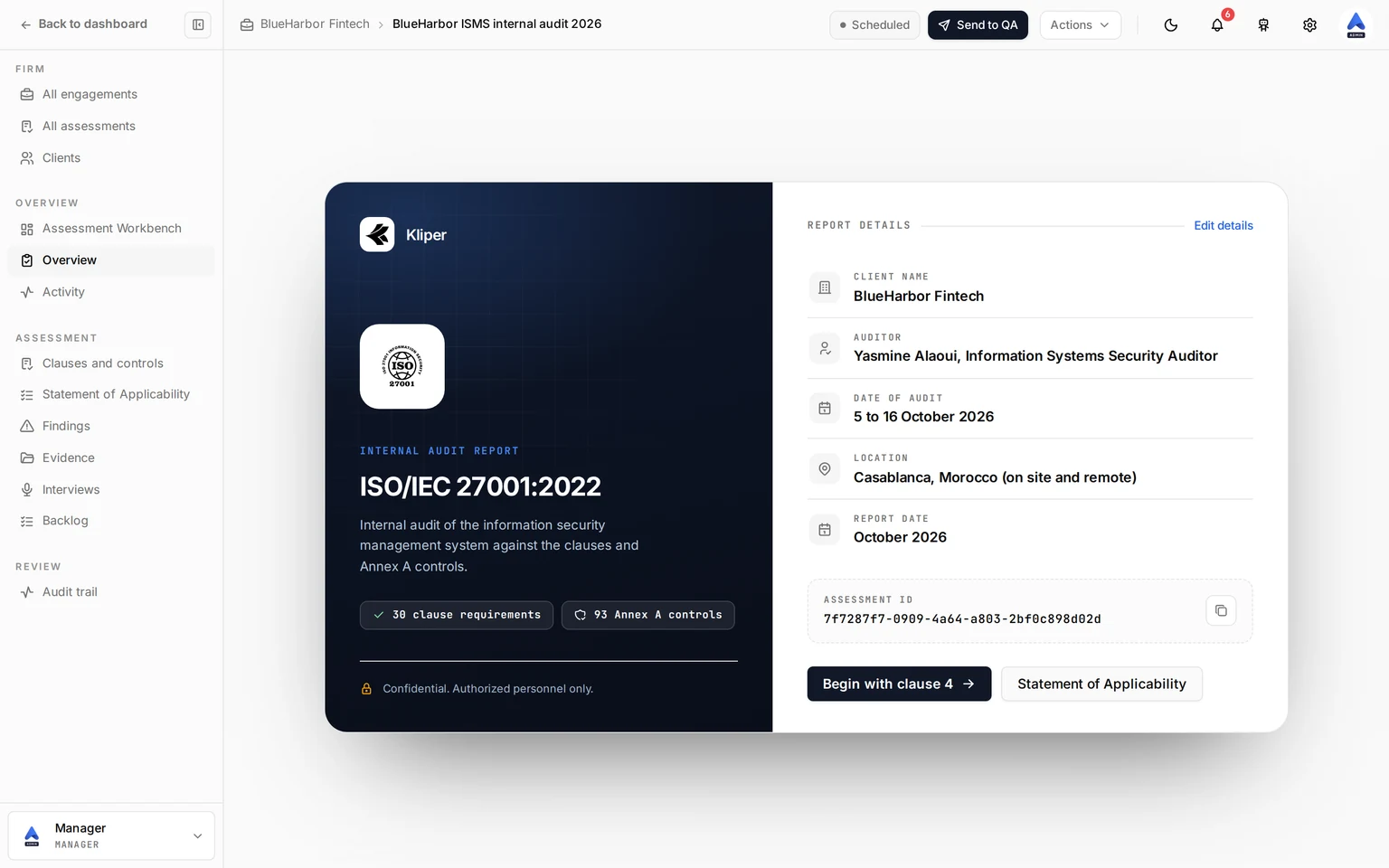
The sidebar’s Overview link opens the ISO cover page: the client, auditor, audit date, location and report date, with Edit details to change them. Click Begin with clause 4 to start grading.
The Statement of Applicability
The Statement of Applicability (SoA) decides which Annex A controls are in scope. The client makes the decisions; you review them. Send it first: controls the client excludes are not tested, and the evidence packs leave them out.
Send it to the client
Open the client's evidence requests
Go to Engagement Hub, open the client, and select the Evidence tab.
Choose the pack
Click New request, choose From Template, and pick ISO 27001 — Statement of Applicability. The ISO 27001 — Full pack also includes it.
Create the request
Review the list and click Create 1 request. The client sees the SoA at the top of their evidence requests, marked Start here.
An assessment has one SoA request. Creating a second one is skipped.
What the client fills in
For each Annex A control, the client chooses Applies or Doesn’t apply.
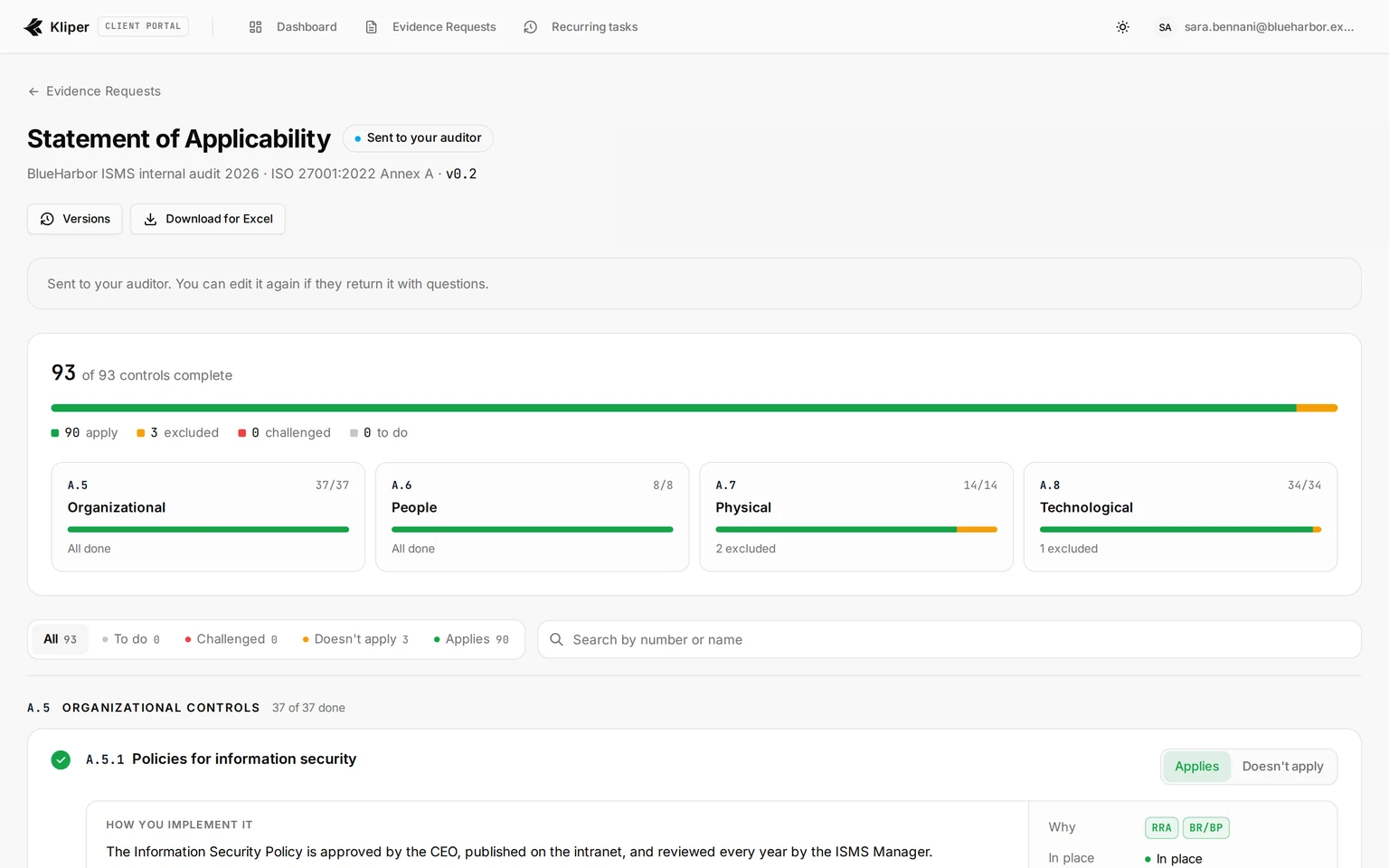
- Applies: the client ticks at least one reason, says whether it is in place (Yes, Partly or Not yet), and describes how they implement it. Naming the covering document is optional.
- Doesn’t apply: the client explains why. You read every exclusion first.
| Reason | Meaning |
|---|---|
| LR | Legal or regulatory requirement |
| CO | Contractual obligation |
| BR/BP | Business requirement or best practice |
| RRA | Result of the risk assessment |
The client clicks Send to your auditor when every control is complete. A client who already keeps an SoA can click Upload your own SoA instead; the request can then be sent with the file, and you record their decisions yourself (see below).
Review the client’s decisions
Open Statement of Applicability in the assessment sidebar. The page shows how many of the 93 controls the client has decided, per theme, and filters the list by To review, All, Excluded, Challenged and Undecided.
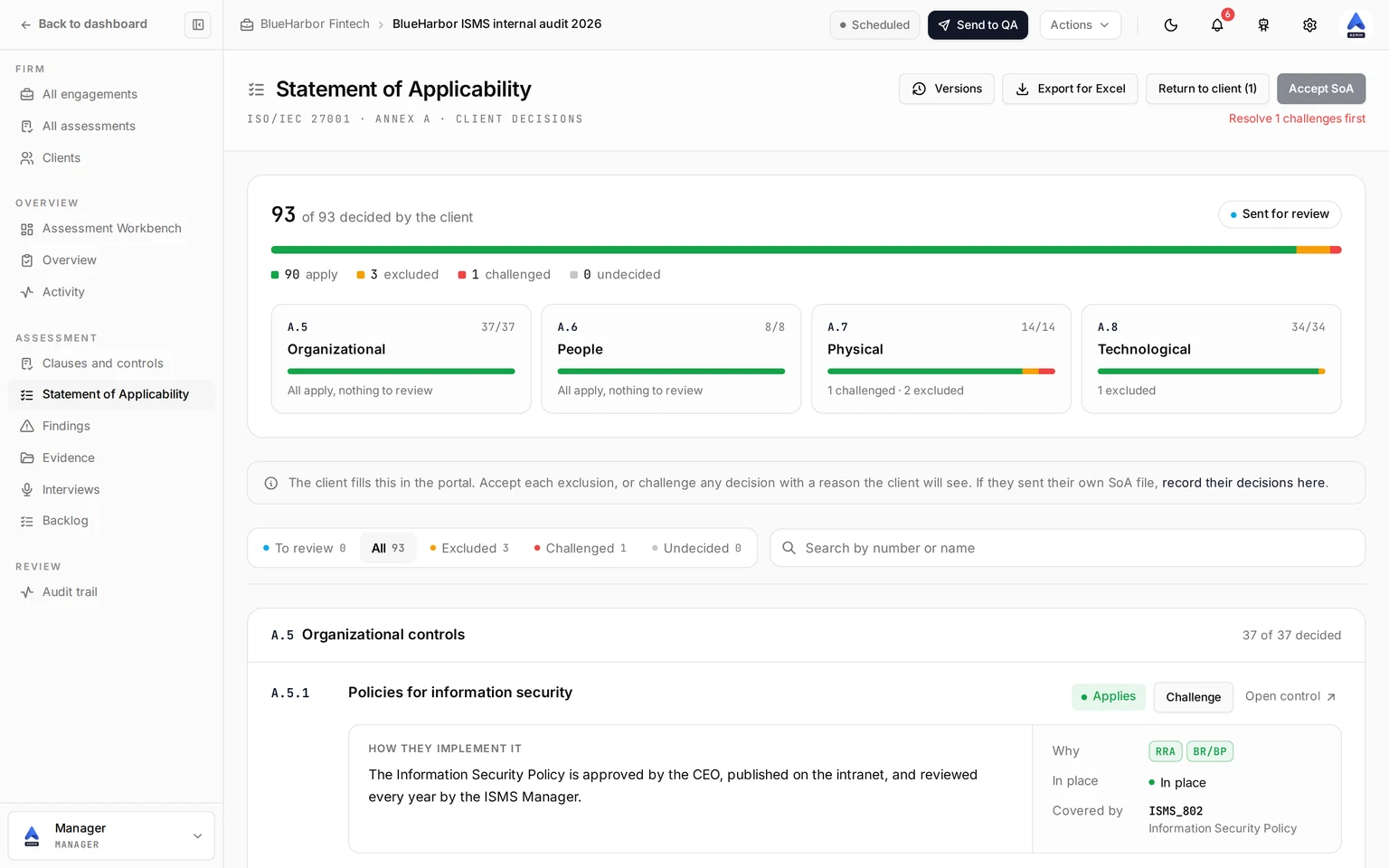
For each control:
- Click Accept exclusion to agree with an exclusion.
- Click Challenge and write your reason to question any decision. The client sees your note.
When you have challenges, click Return to client. The client replies to each one, or changes the decision, and sends the SoA back. For each reply, click Mark resolved or Challenge again. When nothing is left open, click Accept SoA.
If the client uploaded their own file, click record their decisions here on the SoA page and enter the decisions with the same editor the client uses.
Every exchange is versioned: 0.1 when the draft starts, a new 0.x each time the client sends it, and 1.0 when you accept it. Click Versions to see the history.
Click Export for Excel to download the SoA as an Excel file: one row per Annex A control with its applicability, the exclusion justification, the reasons, the implementation, whether it is in place, the covering document, your review and note, and the client’s reply, plus a version history sheet. The client can download the same file from the portal.
The client’s decision also shows on each Annex A control screen, where you can Accept or Challenge it without leaving the control.
What the client changed
Kliper keeps every save the client makes to a control in the portal, so an earlier reason or implementation note is not lost when they rewrite it. At the bottom of a control’s row on the Statement of Applicability page, 1 change by the client (or n changes by the client) tells you there is a history. Click Show to open it and Hide to close it.
Each entry names who saved it and when, newest first, and lists the fields that changed with the previous value struck through next to the new one:
| Field | What it records |
|---|---|
| Decision | Applies or Excluded |
| Reasons | The reasons ticked for a control that applies |
| Reason for excluding | The justification for an exclusion |
| How they implement it | The implementation description |
| In place | Yes, Partly or Not yet |
| Document | The covering document |
| Reply to your challenge | The client’s answer to a challenge |
A control the client decided with the Mark the undecided ones as applying shortcut gets its own entry. Only the client’s portal saves are recorded: your acceptances, challenges and notes are not in this list, and neither are decisions you record yourself from an uploaded SoA. A save that changes nothing adds nothing. The history is shown on this page only; the control screen and the Excel export carry the current decision.
Request evidence
Evidence requests for ISO use the same flow as the SoA: Engagement Hub, the client’s Evidence tab, New request, From Template. The ISO packs are:
| Pack | What it creates |
|---|---|
| ISO 27001 — Full pack | The SoA, the mandatory documents and every Annex A control |
| ISO 27001 — Statement of Applicability | The SoA request on its own |
| ISO 27001 — Mandatory documents | The documented information clauses 4 to 10 require |
| A.5 — Organizational controls to A.8 — Technological controls | One request per control in that theme |
Annex A packs leave out every control the client’s SoA excludes, which is why the SoA goes first. You can also write a custom request with an Annex A reference such as A.5.15. See Evidence Request Templates for how templates and reviews work in general.
When you accept a request, its files are filed into the matching ISO folder (the SoA, the Annex A theme, or the clause) and appear under Evidence on the control, tagged CLIENT.
Grade a clause or control
Each clause and control has its own screen.
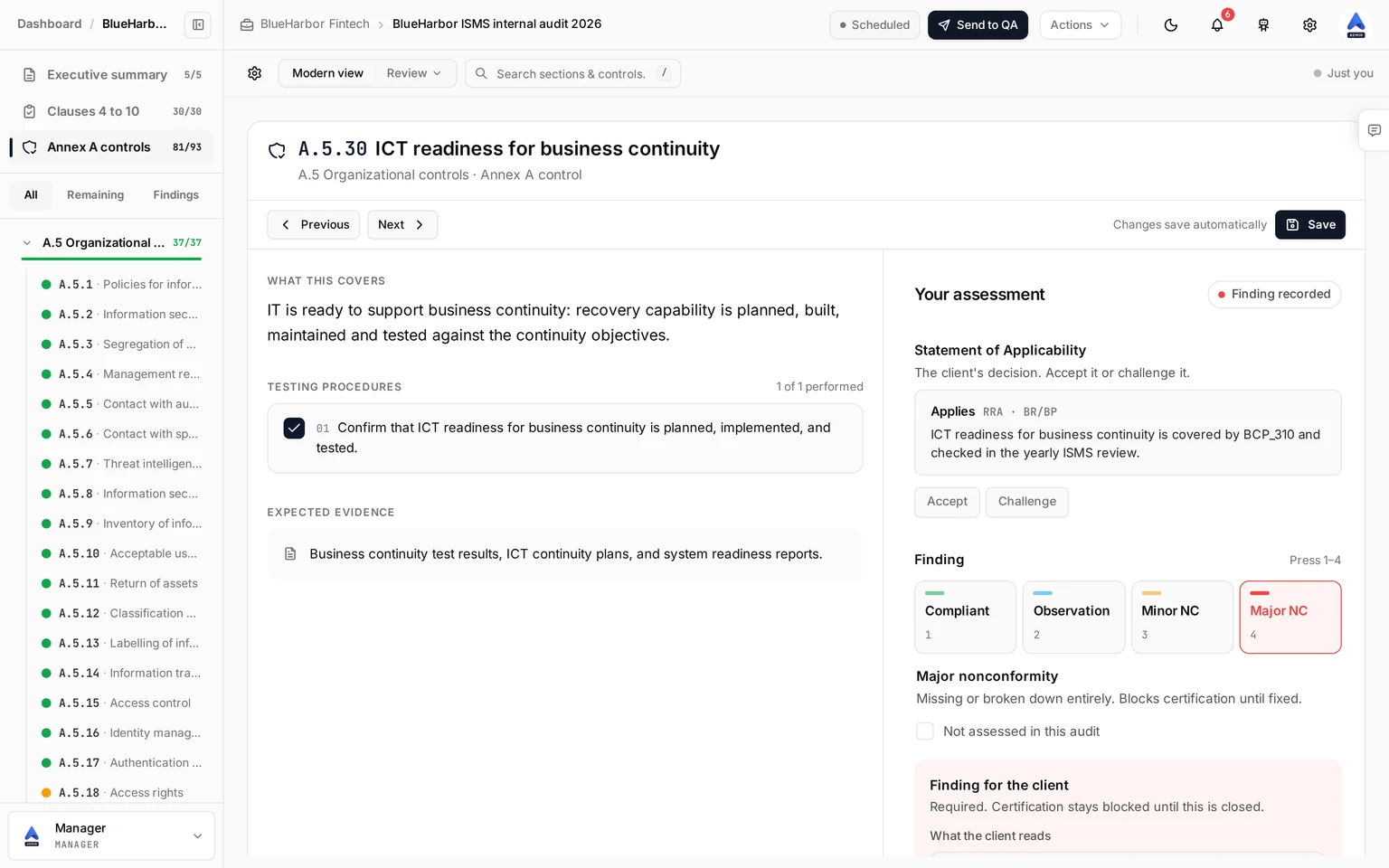
The left column holds the reference material: What this covers (a plain-language summary), Also satisfies (the matching PCI DSS, SOC 2 and NIST CSF references), Testing procedures with a tick box for each one you perform, and Expected evidence.
The right column, Your assessment, is where you record the outcome.
Pick the finding
Click one of the four grades, or press 1 to 4. Tick Not assessed in this audit for an item you did not examine; it is left out of the totals.
Write the finding for the client
For an observation or a nonconformity, a Finding for the client panel opens. Write What the client reads in words the client will understand, and add a Recommendation. The client’s answer appears in the same panel once they reply.
Add the optional detail
Rate the Maturity from 0 (nonexistent) to 5 (optimized), keep Auditor notes, and list Evidence: the client’s accepted files appear on their own, and you can add links or document IDs.
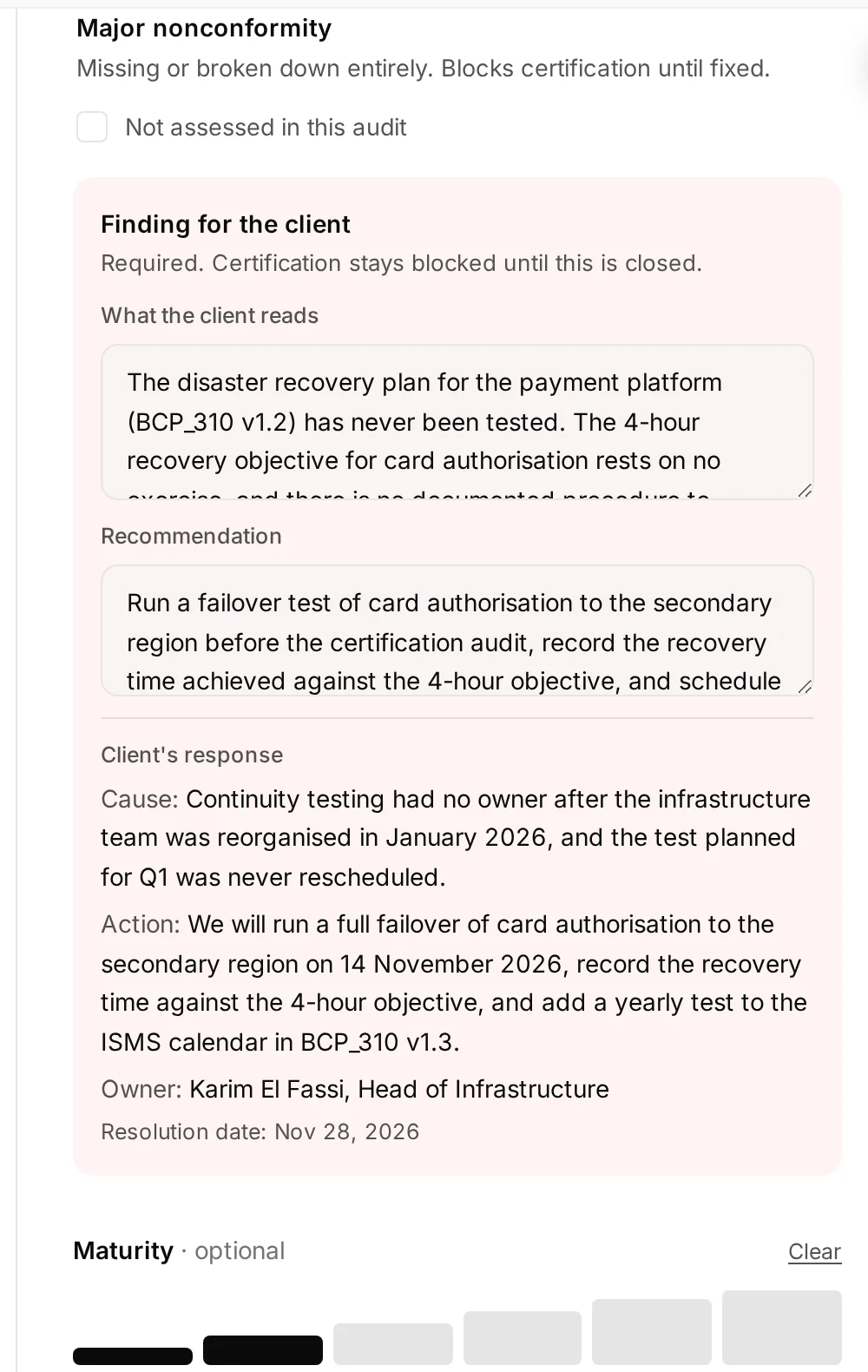
| Grade | Key | Use it when |
|---|---|---|
| Compliant | 1 | The requirement is met, with evidence. |
| Observation | 2 | There is no failure, but a risk or an improvement worth reporting. |
| Minor nonconformity | 3 | A real but isolated gap. It needs a fix plan and a date. |
| Major nonconformity | 4 | The requirement is missing or has broken down. It blocks certification until fixed. |
Changes save automatically. An Annex A control the SoA excludes is not tested: its screen shows the exclusion and its justification instead of the grades, so you can challenge a weak one.
Findings and management responses
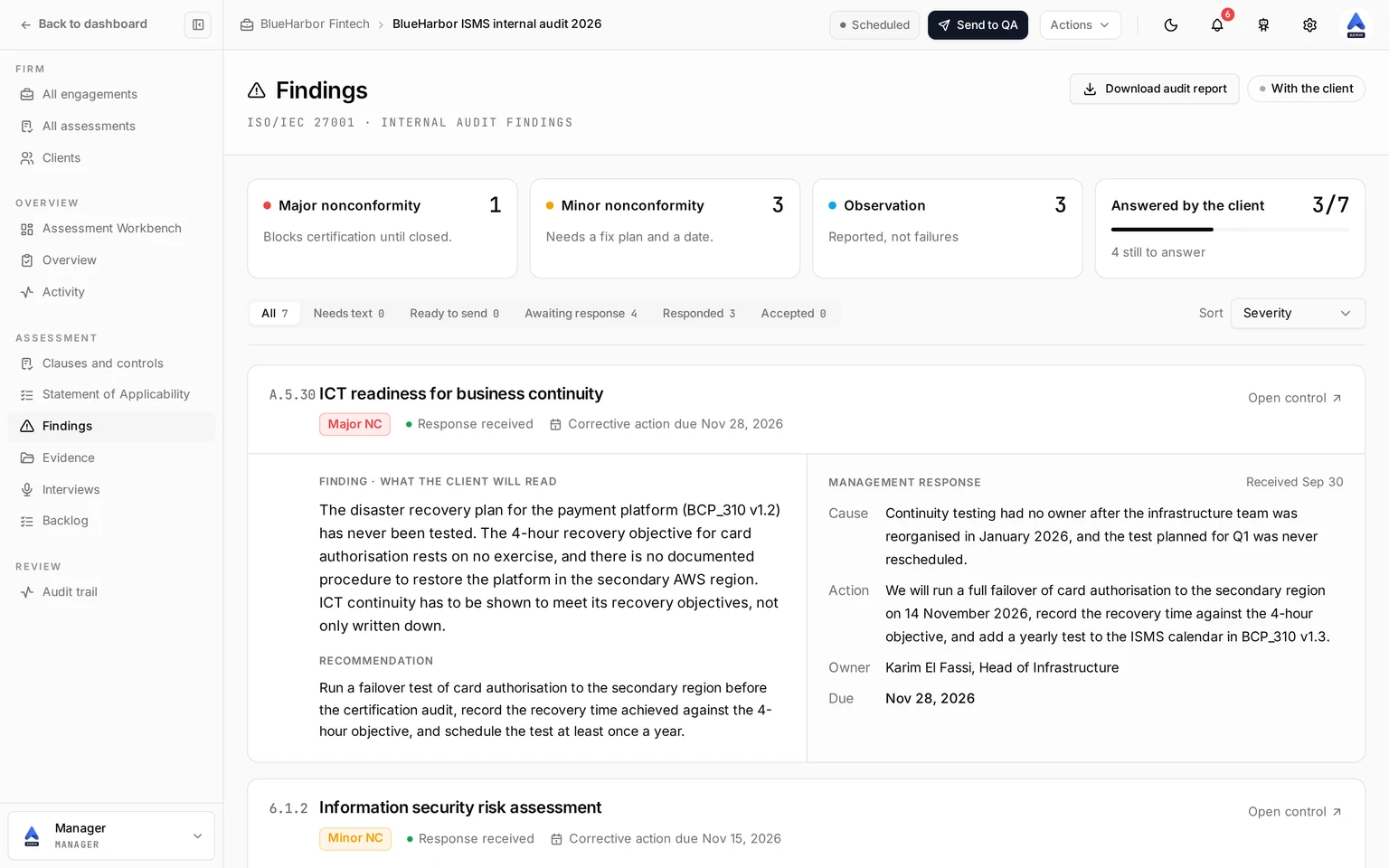
Every item graded as an observation, a minor or a major nonconformity becomes a finding. Open Findings in the assessment sidebar to see them all, with a count per grade. Filter by Needs text, Ready to send, Awaiting response, Responded or Accepted, and sort by Severity or Clause order.
Send the findings
Every finding needs the text the client will read before you can send. Write any that are missing on the finding’s card, or on its control screen, then click Send n findings to client. All findings go to the client together, in one request titled Audit findings.
What the client answers
In the portal, the client answers each finding and clicks Save answer. What they give depends on the grade:
| Question | Nonconformity | Observation |
|---|---|---|
| Why did this happen? (the cause, not the symptom) | Required | Not asked |
| What will you change so it does not recur? / What will you do about it? | Required | Required |
| Who owns it (name and role) | Required | Required |
| Resolved by (a date) | Required | Required |
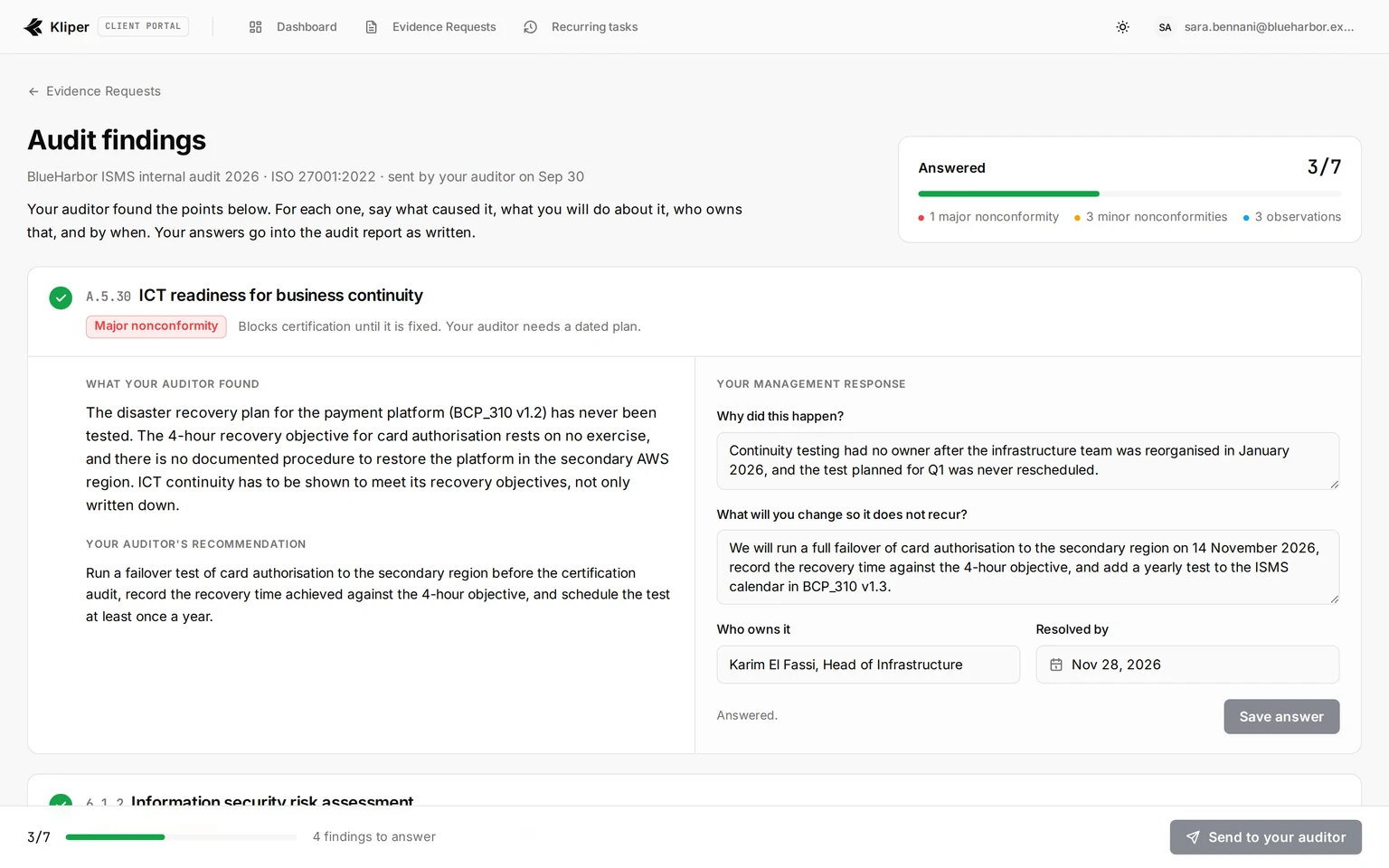
An observation is not a failure, so the client may also explain why they choose not to act. Send to your auditor stays disabled until every finding is answered.
Review the responses
The responses appear on the Findings page and on each control screen, as the cause, the action, the owner and the due date. On the Findings page, the Management response column of each finding also says when the answer was received. Click Accept responses to close the round, or Return to client with a note explaining what should change. The client sees your note, edits their answers and sends them again.
Every answer the client saves is kept, so you can see how a response changed between rounds. Below the management response, 1 change by the client (or n changes by the client) tells you there is a history. Click Show to open it. Each entry names who saved it and when, newest first, and lists the fields that changed, Cause, Action, Owner and Due, with the previous value struck through next to the new one. A save that changes nothing adds nothing. The history is shown on the Findings page only; the control screen shows the current answer.
Export the internal audit report
Click Download audit report at the top of the Findings page or of any Executive summary screen. Kliper produces a Word document (.docx) you can edit before you issue it. It fills in:
- The cover, the executive summary and the engagement details from the Executive summary screens, including the contacts, the people interviewed and the documents reviewed.
- The Appendix A results table: one row per clause from 4.1 to 10.2 and per Annex A control, numbered and titled as in ISO/IEC 27001:2022, with a Control column, your observations and the grade. For every Annex A control, the Control column carries Kliper’s own one-sentence summary, the same text as What this covers on the control screen, so the report does not reproduce the standard’s control statements. A clause shows the most severe grade among its requirements and the finding text of each requirement that has one, and a control the SoA excludes reads Not Applicable.
- The summary of results, with the count of each grade per clause and per Annex A theme, and the totals.
- One block per finding, most severe first: the finding, the ISO reference, the classification, your recommendation, the client’s management response (cause, action and owner) and the resolution date.
Track progress
ISO assessments show up across Kliper with ISO terms:
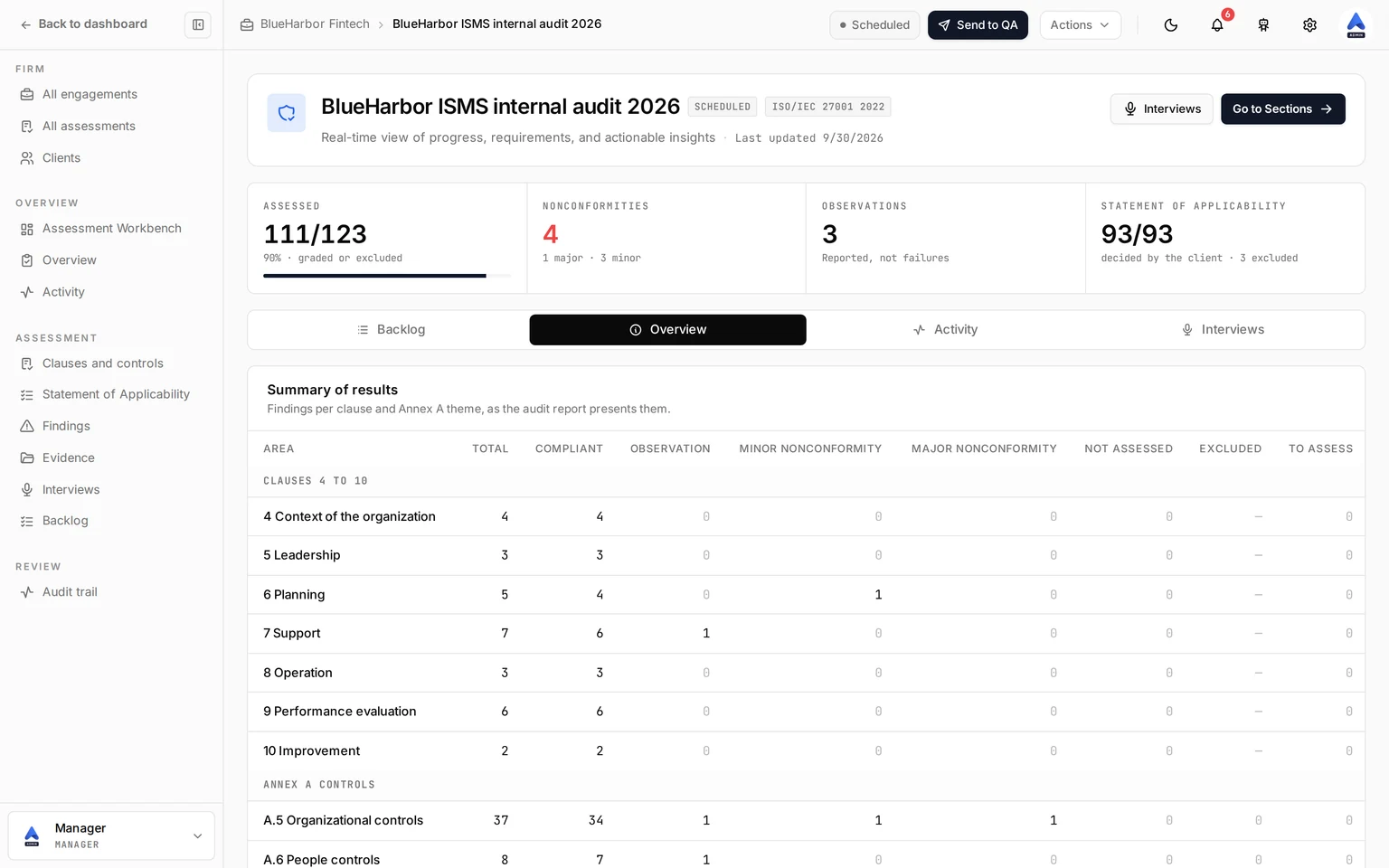
- The Assessment Workbench shows how many items are assessed, the nonconformities by severity, the observations and how much of the SoA the client has decided. Its Overview tab holds the Summary of results: the grade counts per clause and Annex A theme, as the report presents them.
- The Workbench counts items graded, lists minor and major nonconformities among the open gaps, and colours its coverage map by grade: compliant, observation, minor, major or excluded.
- The Assessments list and board count progress as the items graded or excluded out of 123.
What differs from PCI DSS
The ISO assessment keeps only what an internal audit needs. Scoping, instructions, milestones, gap analysis, risk scoring, ROC drafts and ROC import belong to PCI DSS and are not shown. Cortex works on ISO audits as an assistant that reads and drafts the finding text, the recommendation or the notes, and never grades: see Cortex on ISO 27001 and SWIFT CSCF.