

Kliper runs a SWIFT CSCF v2026 assessment from start to finish. You record the customer’s architecture type, which decides which of the 32 controls are in the attestation, test and grade each control, and download a summary of the results. The customer still submits its attestation in SWIFT’s KYC-SA application; Kliper gives you the assessed results to base it on.
How an attestation runs
Create the assessment
Pick the SWIFT CSCF 2026 framework and the customer’s architecture type. Controls outside that type are left out from the start.
Test and grade each control
Record the result of each test, then the control’s grade: compliant, not compliant, not applicable or not assessed.
Review the open items
The Attestation page lists every mandatory control graded not compliant, with your note.
Download the summary
Export the attestation summary as a PDF: the architecture type, the figures, the open items and every control with its grade.
Create a SWIFT assessment
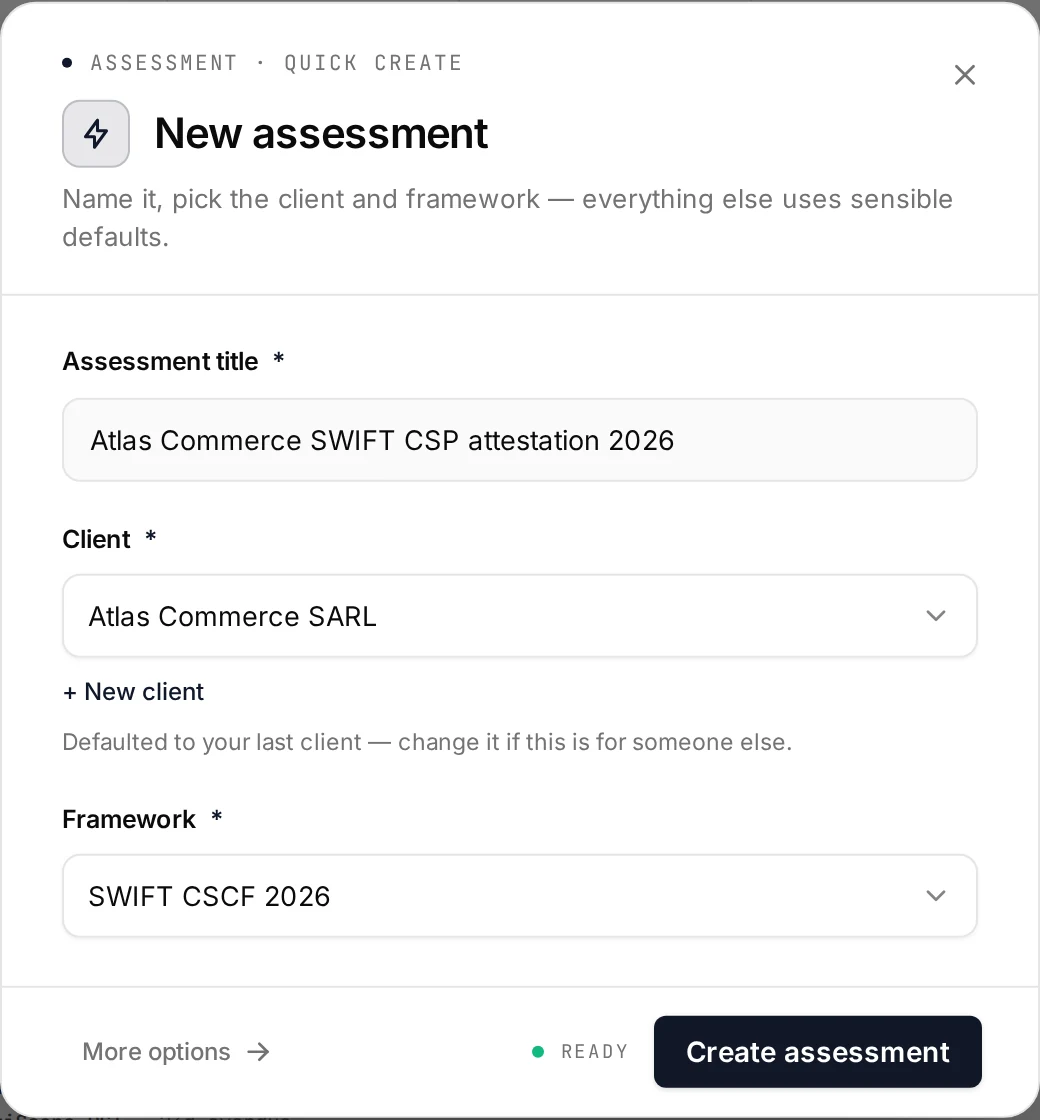
Click New assessment in the top bar, then choose the framework:
- Quick create: in Framework, select SWIFT CSCF 2026. Set the architecture type afterwards on the Attestation page.
- Full wizard: on the Framework step, select SWIFT CSCF and version 2026. The Scope & visibility step then asks for the Architecture type, which is required. The scoping questionnaire and report profiles belong to PCI DSS, so the wizard skips them.
See Creating an Assessment for the rest of the flow.
Start from last year’s attestation
Attestations repeat every year. In the full wizard, on the History step, choose Not first time and pick last year’s assessment under Carry answers forward from. Choosing it also sets the framework. Kliper copies your auditor notes and evidence references on each control as a starting point. Grades and test results are not carried: every control is graded afresh, and its screen shows last year’s grade as a hint until you pick this year’s.
The architecture type
The CSCF defines five architecture types. A control applies to some of them, and a few mandatory controls are only advisory for one type. Kliper keeps the customer’s type on the assessment and uses it everywhere:
| Type | Controls in the attestation | Of which advisory |
|---|---|---|
| A1 | 31 | 6 |
| A2 | 31 | 6 |
| A3 | 30 | 6 |
| A4 | 29 | 8 |
| B | 23 | 7 |
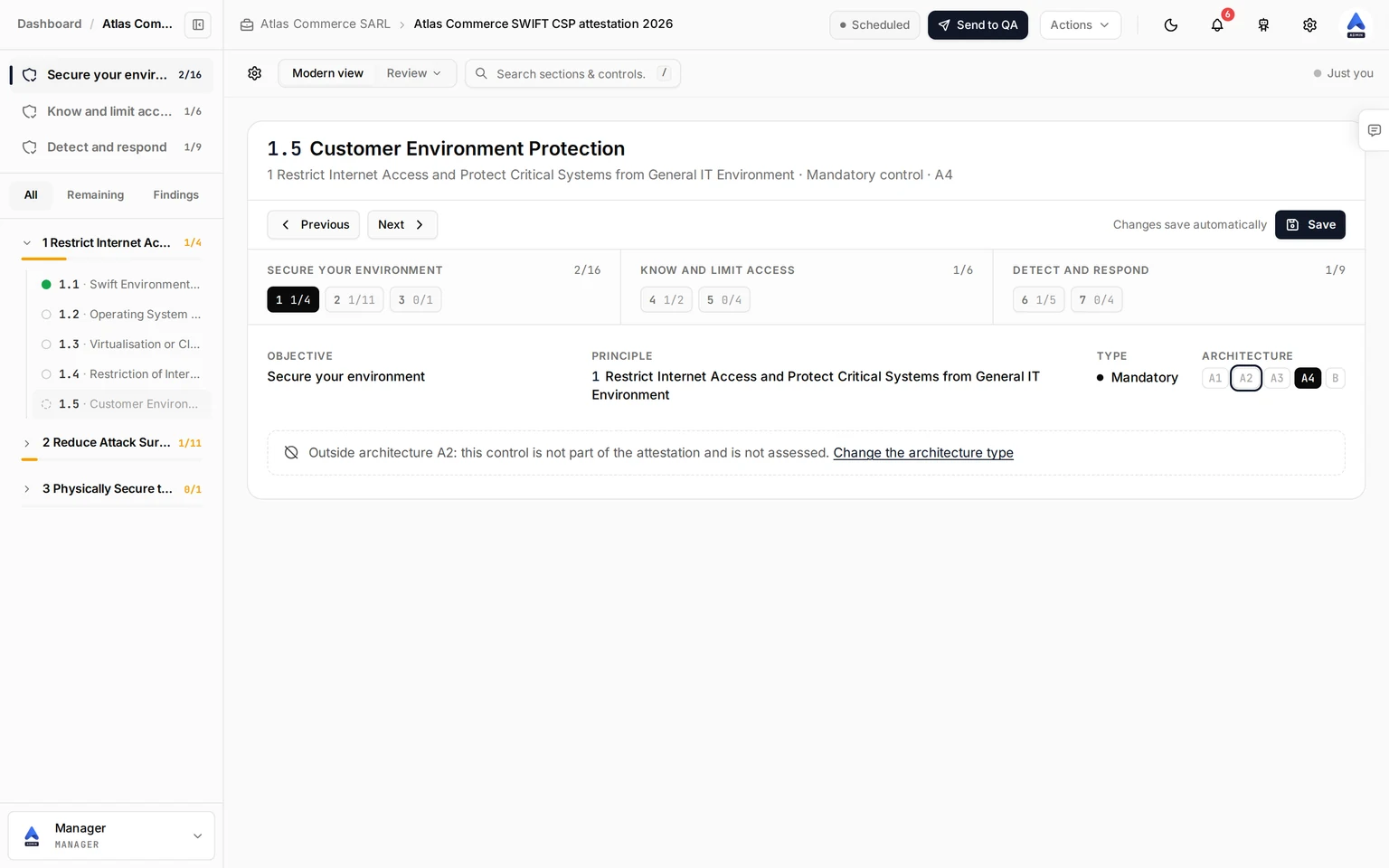
A control outside the type is outside the attestation: its screen says so instead of showing the tests and the grade, and it is left out of every count, from the sidebar to the Workbench and the assessments list. The remaining controls read as mandatory or advisory for that type.
Change the type at any time from the Architecture type picker at the top of the Attestation page. Until it is set, every control counts as part of the attestation and the page says so.
What the assessment contains
| Objective | Principles | Controls |
|---|---|---|
| Secure your environment | 1 Restrict Internet Access and Protect Critical Systems from General IT Environment, 2 Reduce Attack Surface and Vulnerabilities, 3 Physically Secure the Environment | 17 |
| Know and limit access | 4 Prevent Compromise of Credentials, 5 Manage Identities and Separate Privileges | 6 |
| Detect and respond | 6 Detect Anomalous Activity to Systems or Transaction Records, 7 Plan for Incident Response and Information Sharing | 9 |
Of the 32 controls, 26 are mandatory and 6 are advisory (their number ends in A). Inside the assessment, the sidebar gives you Controls, Attestation, Evidence, Interviews and Backlog. On the controls screen, switch between the three objectives and filter the list by All, Remaining or Findings. Each row carries a dot in the colour of its grade; a control outside the architecture type shows a dashed ring.
Grade a control
Each control has its own screen.
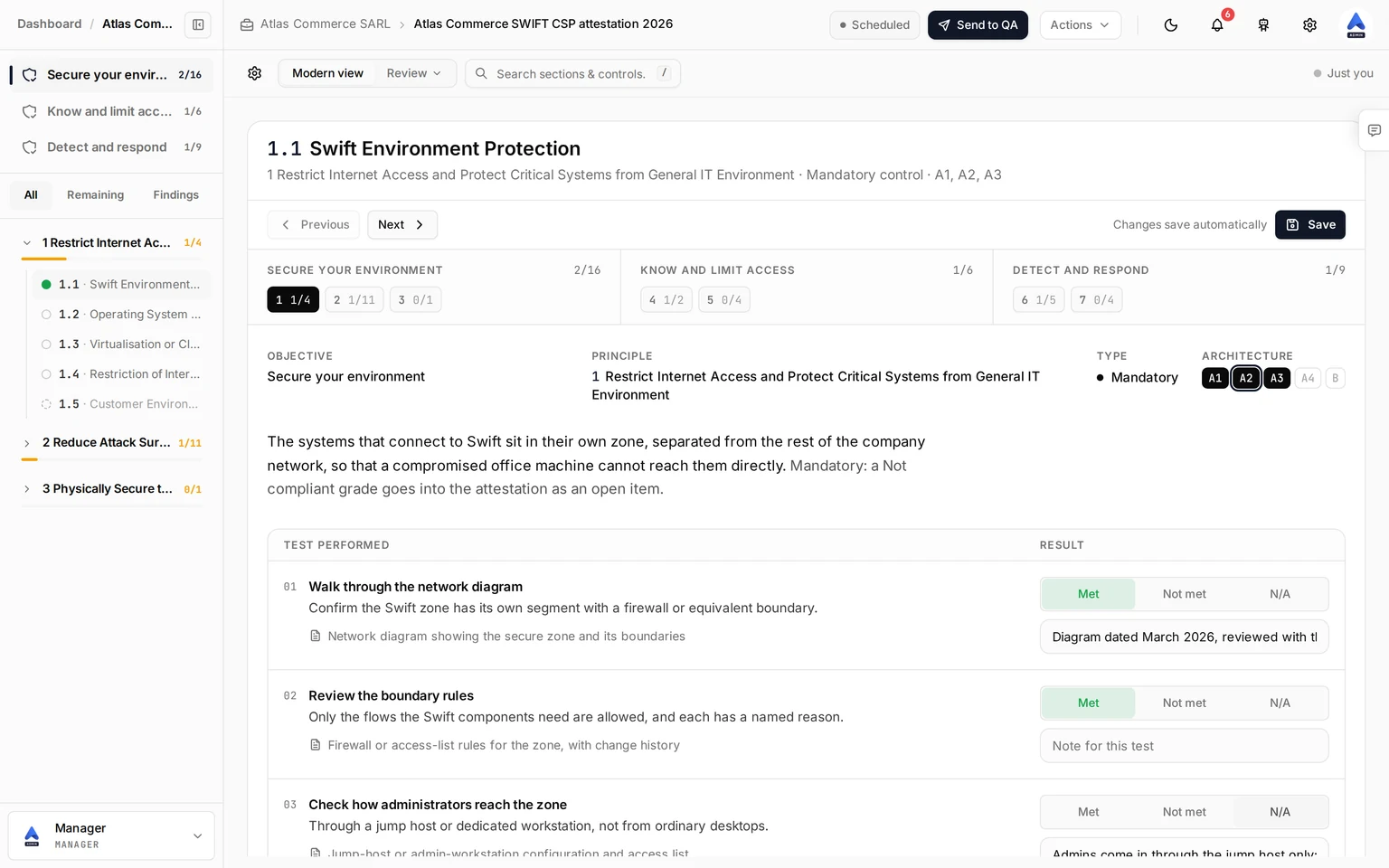
Under the toolbar, the objectives strip shows the three objectives and their principles with the count of controls graded in each. Click a principle to jump to its first control. Below it, the facts row names the objective, the principle, the control’s type and the architecture types it applies to, with the customer’s own type ringed. A one-paragraph summary says what the control is for and what a not compliant grade means for a mandatory or an advisory control.
Record each test
The Test performed table lists what to check for the control, with the expected evidence under each test. Pick Met, Not met or N/A for each test, and add a note for that test if you want. The footer says whether the customer sent evidence for the control or whether a request is still open.
Pick the grade
Under Control grade, click one of the four cards, or press 1 to 4. The dots beside the heading recap the test results.
Add the optional detail
Keep Auditor notes, and list Evidence: the customer’s accepted files appear on their own, and you can add links or document IDs.
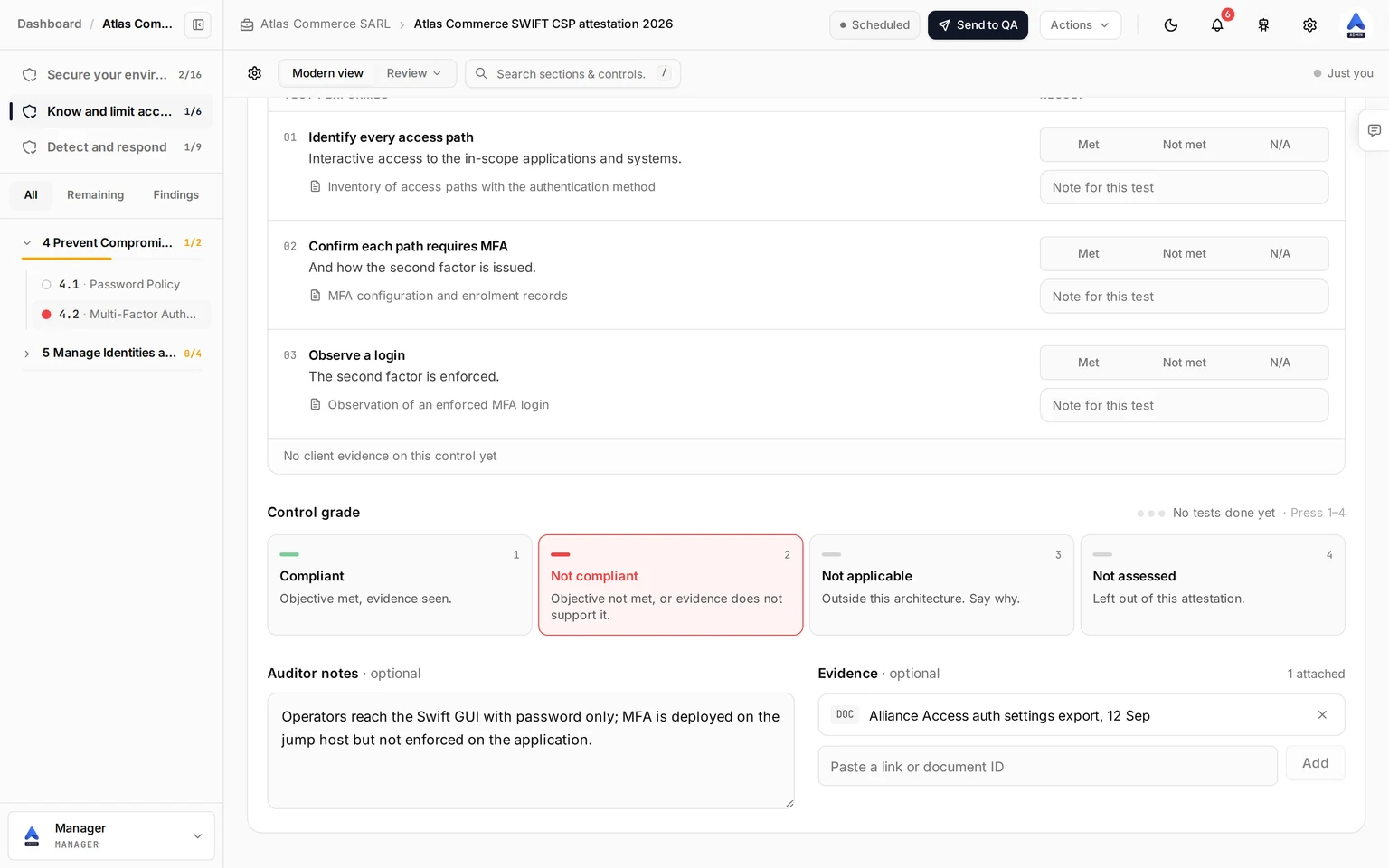
| Grade | Key | Use it when |
|---|---|---|
| Compliant | 1 | The objective is met and you saw the evidence. |
| Not compliant | 2 | The objective is not met, or the evidence does not support it. For a mandatory control this is an open item of the attestation. |
| Not applicable | 3 | The control does not apply to this customer. Say why in the notes. |
| Not assessed | 4 | You left the control out of this attestation. |
Changes save automatically. A control outside the customer’s architecture type is not tested: its screen says so, with a link to change the type.
The Attestation page
Open Attestation in the sidebar.
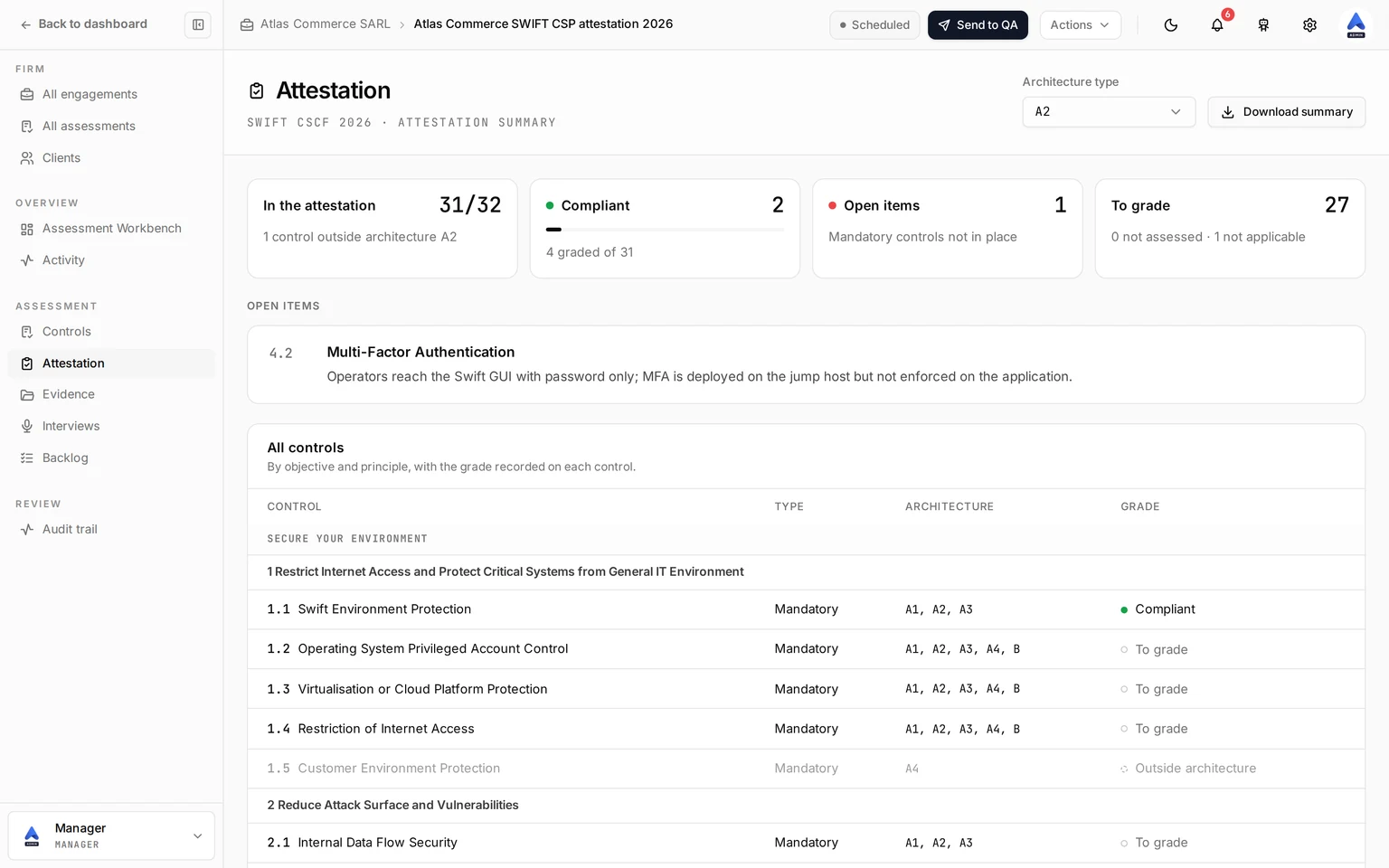
The page holds, from the top:
- The Architecture type picker and the Download summary button.
- Four figures: the controls in the attestation, the compliant ones, the open items (mandatory controls graded not compliant) and the controls still to grade.
- The open items, each with your auditor note. Click one to open its screen.
- All controls by objective and principle, with the type, the architecture types and the grade recorded on each.
Download the summary
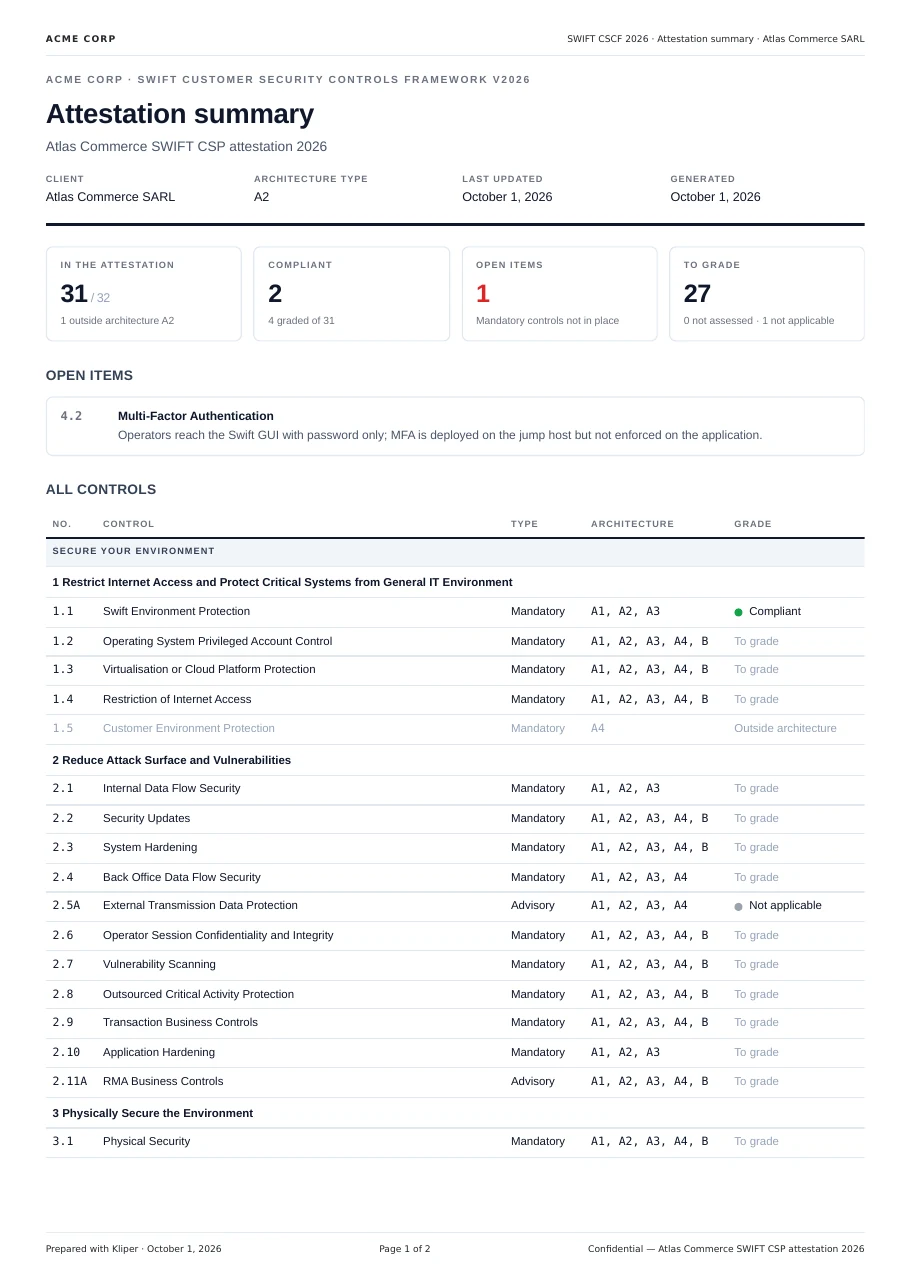
Click Download summary. Kliper produces a PDF with your firm’s name in the header: the client, the architecture type, the four figures, the open items with your notes, and every control with its grade. It is a summary of the assessed results to base the customer’s attestation on, not the attestation itself.
Track progress
SWIFT assessments show up across Kliper with SWIFT terms:
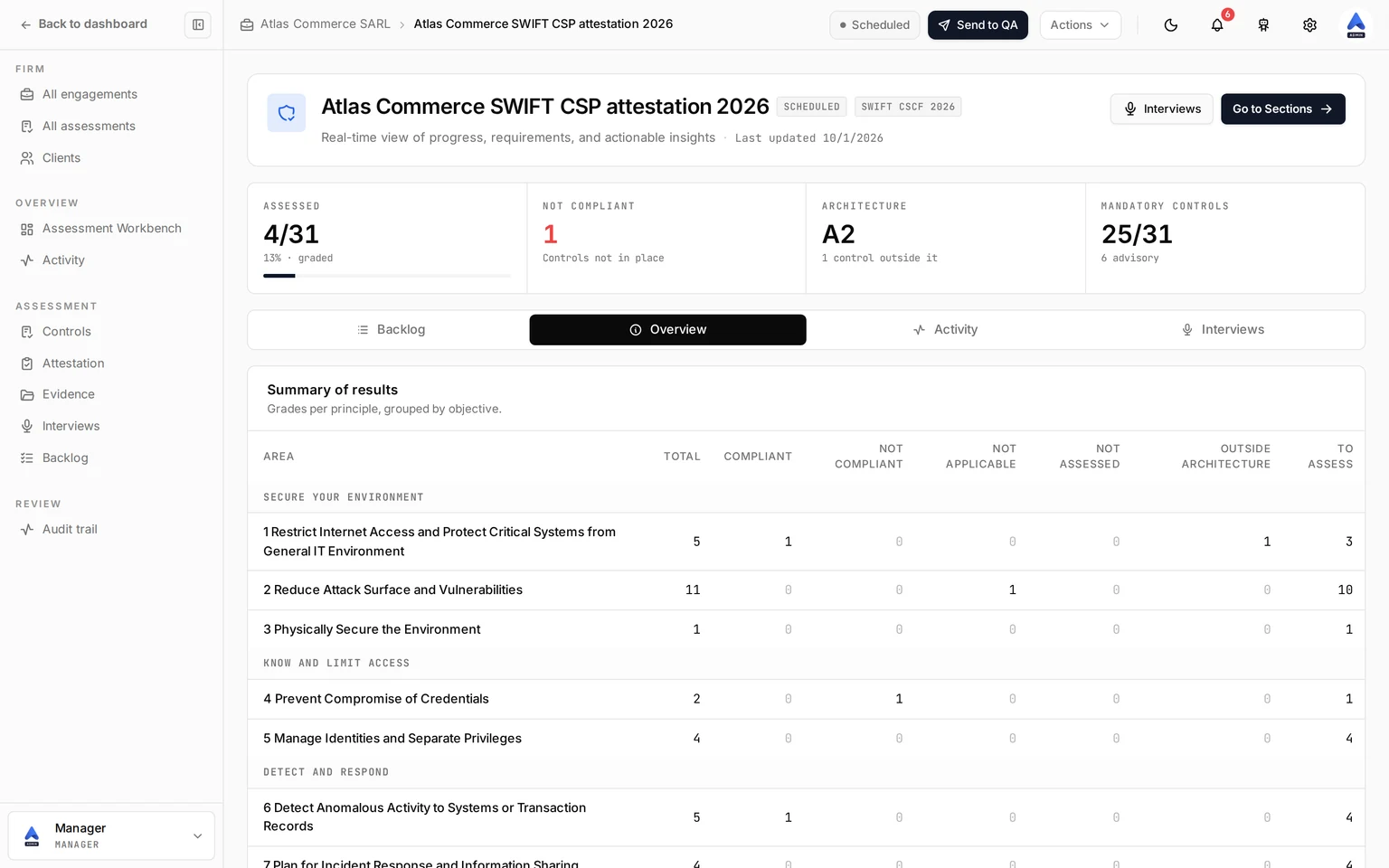
- The Assessment Workbench shows how many controls in the attestation are assessed, the controls not compliant, the architecture type with the count of controls outside it, and the mandatory controls among those in scope. Its Overview tab holds the Summary of results: the grade counts per principle, grouped by objective.
- The Workbench counts the controls graded, lists the controls not compliant among the open gaps, and colours its coverage map by grade.
- The Assessments list and board count progress as the controls graded or outside the architecture type, out of 32.
What differs from PCI DSS and ISO 27001
The SWIFT assessment keeps only what an attestation needs. Scoping, instructions, milestones, gap analysis, risk scoring, ROC drafts and ROC import belong to PCI DSS; the Statement of Applicability, the findings sent to the client and the internal audit report belong to ISO 27001. None of them is shown. Evidence requests and the client portal work as for any framework. Cortex works on SWIFT attestations as an assistant that reads, summarizes the open items and drafts the auditor notes, and never grades: see Cortex on ISO 27001 and SWIFT CSCF.